Managing Departments
Departments are designed to help supervisors and artists focus on their tasks. Once a user is linked to one or more departments, supervisors and artists gain direct access to a filtered view of all tasks associated with that task type.
Departments are also used to define what metadata columns appear for users within that department. If a metadata column is linked to a department, then they will only show up for users in that department. If a metadata column is not associated with a department, they will show up for everyone.
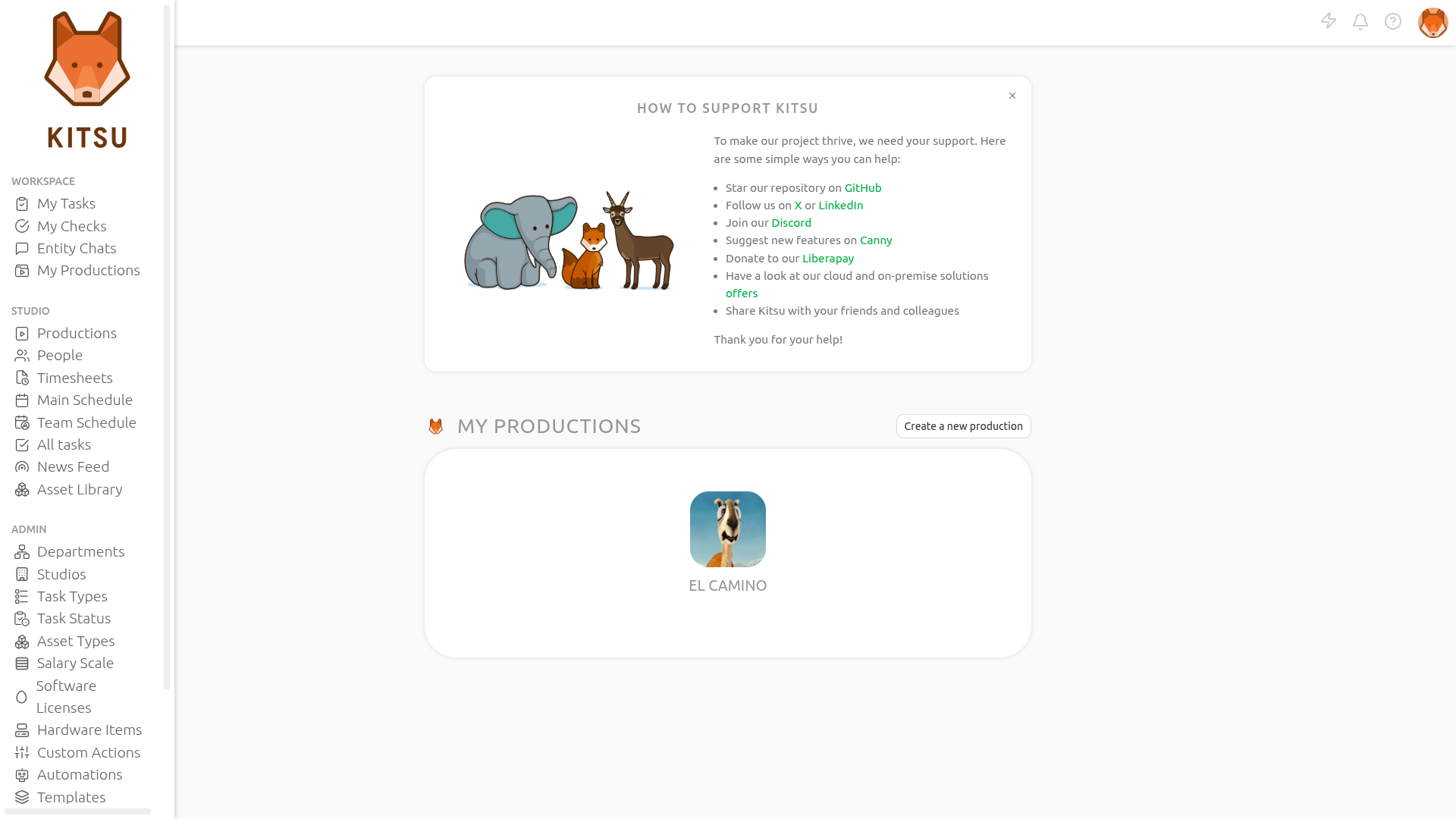
To manage your departments, select the Department page under the Admin section from the main navigation menu.
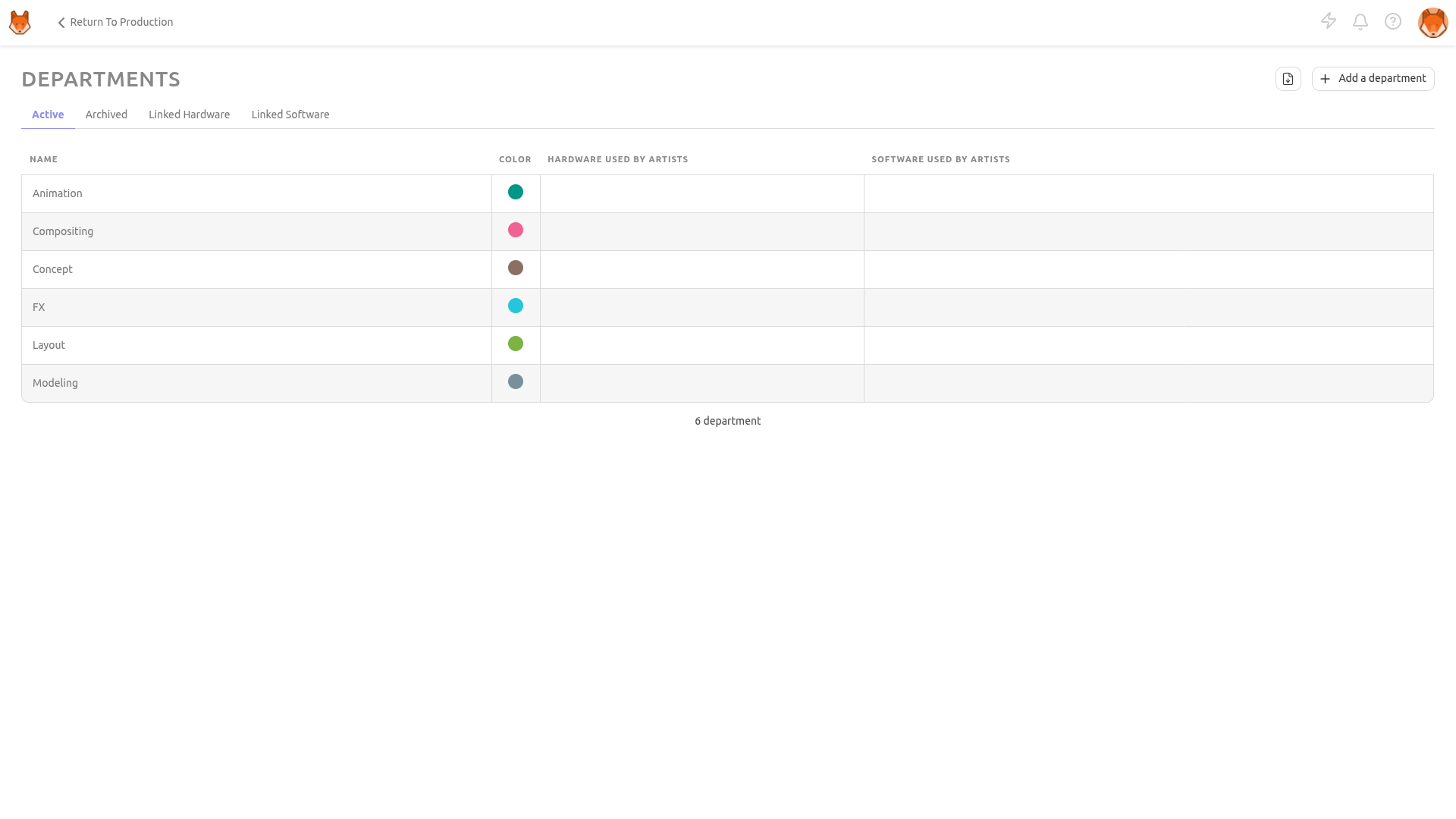
You'll reach the list of available departments:
Creating Departments
Defining your studio's Departments is typically the first step in setup, as multiple objects such as people and task types are linked to a department.
TIP
By default, Kitsu provides some example departments to help you get started.
If you need to create more departments, you can click on the Add a department button.
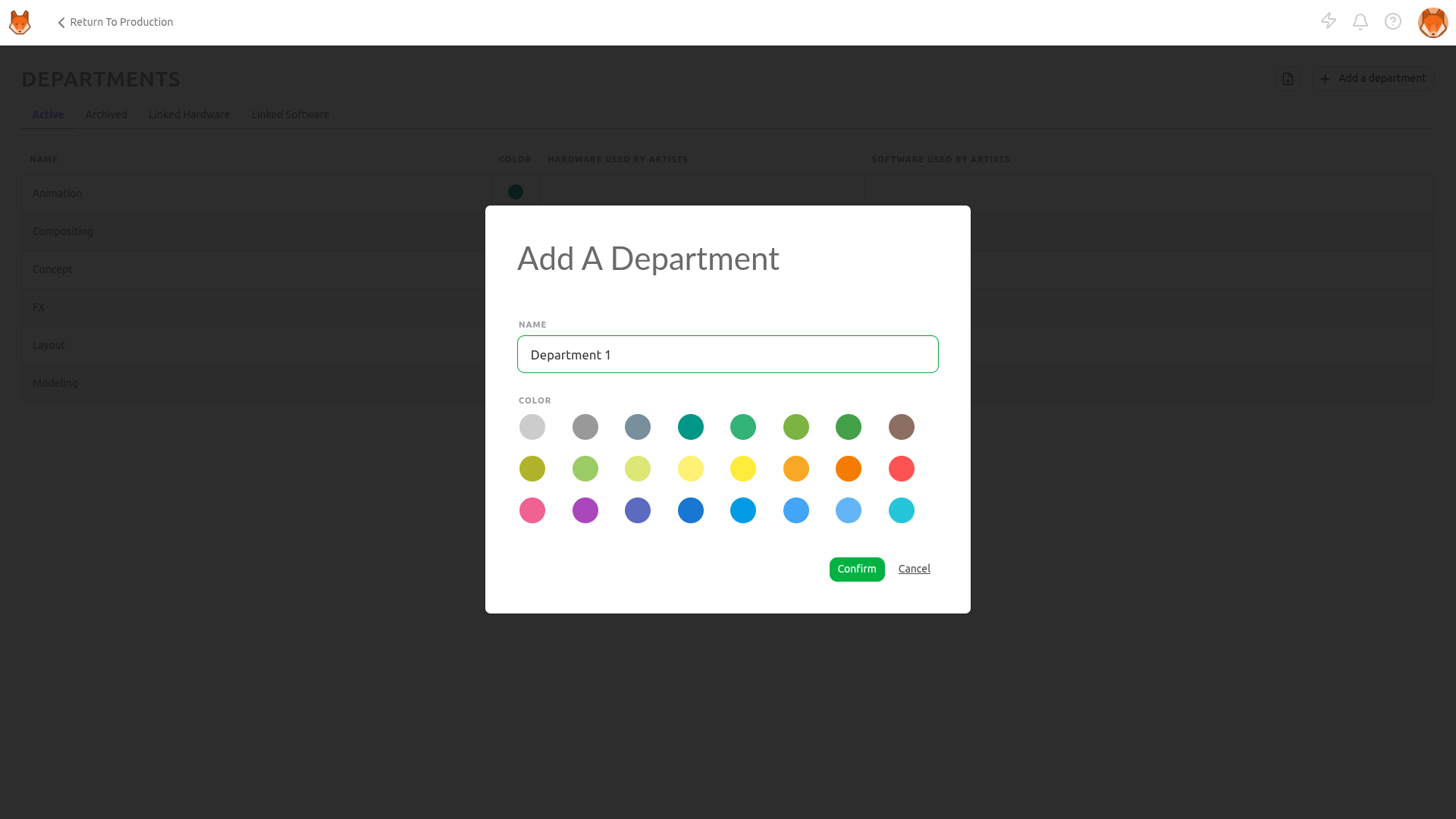
When adding a department, you need to define:
- The name of the department
- A color (it will be displayed as a small round circle next to a column task type or a custom column)
Click on Confirm to save your changes.
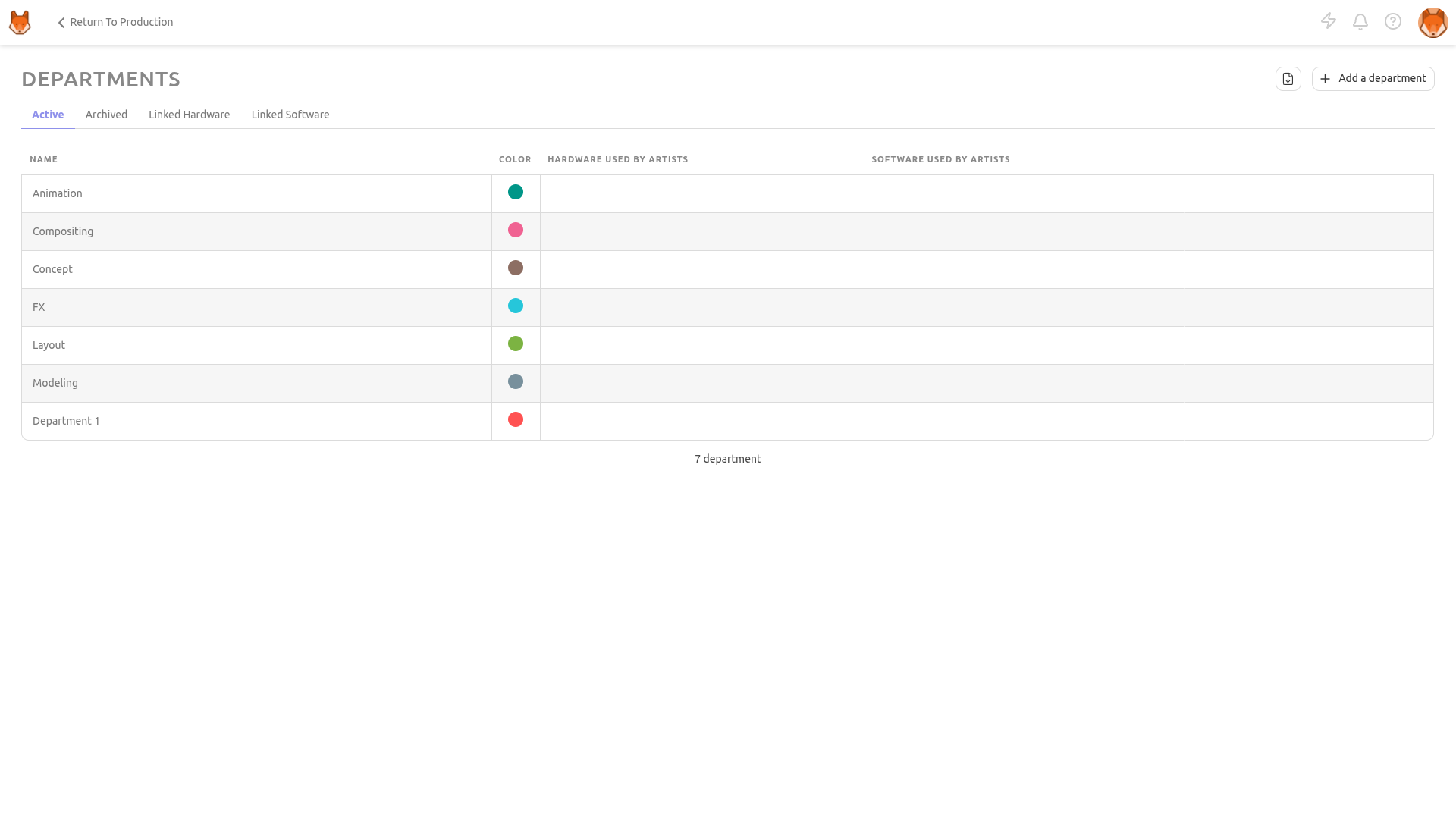
Once you finish creating the department, your page should look like this. Each department has a unique name and a corresponding color:
Update Departments
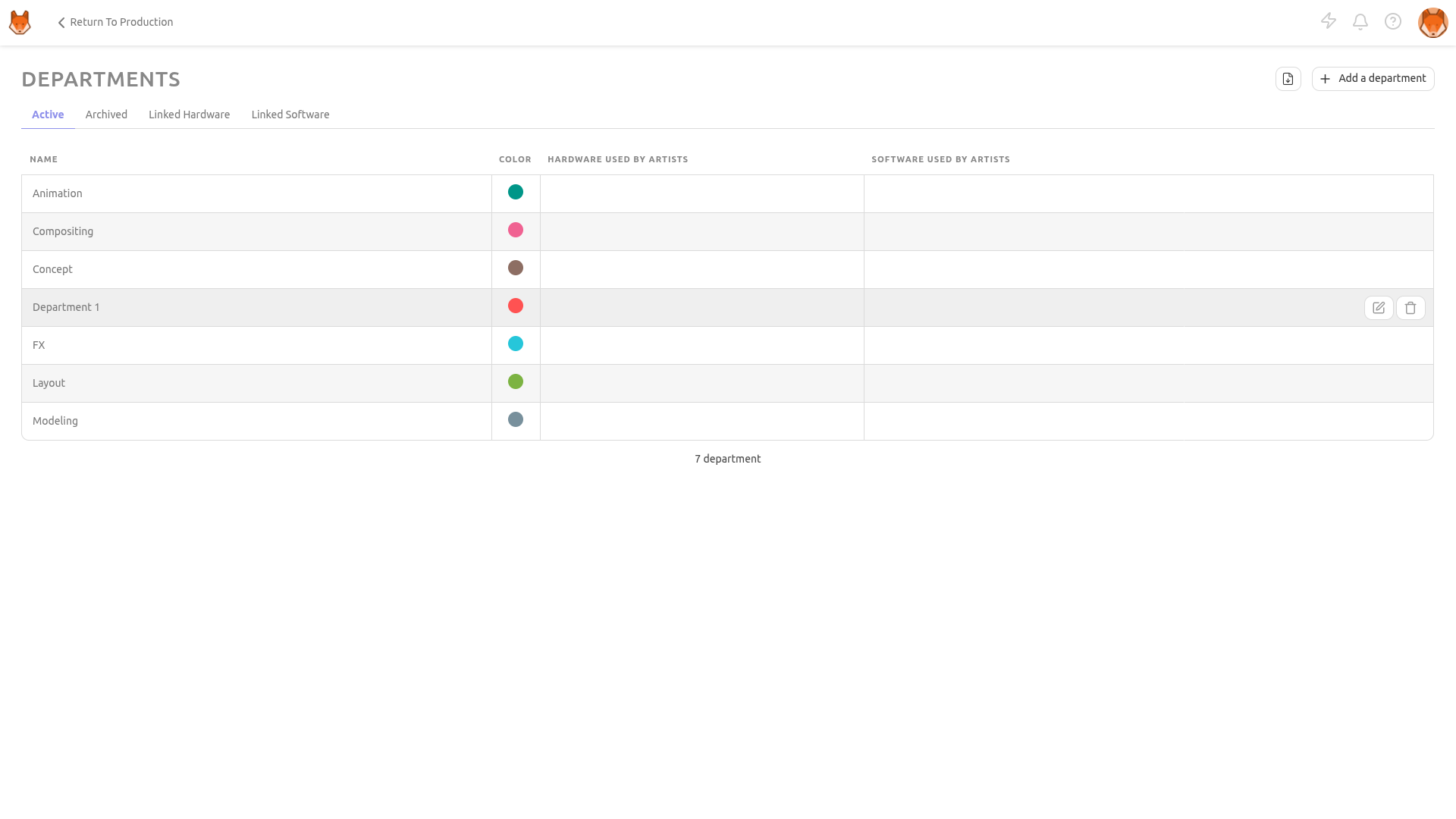
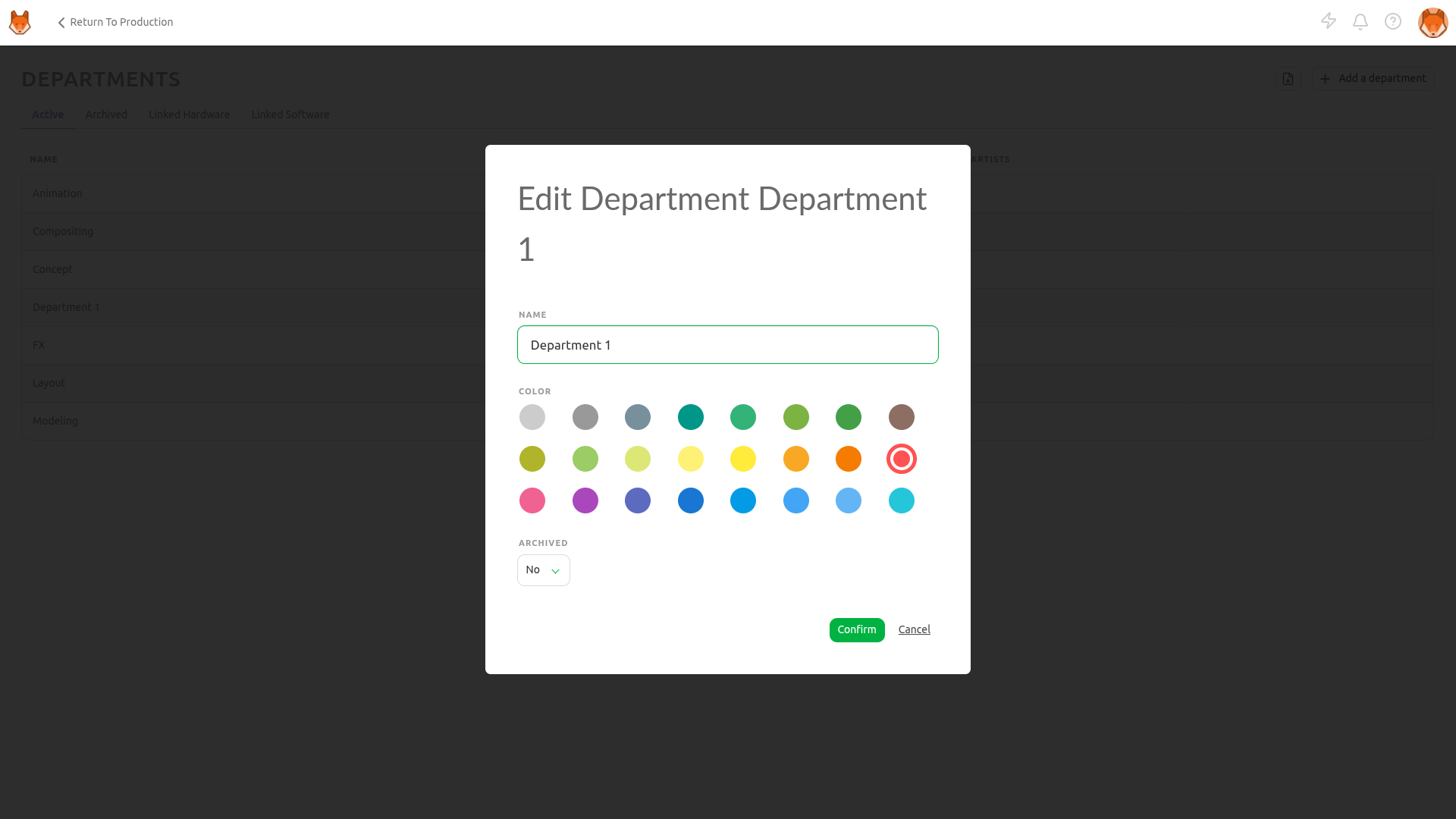
To update a department simply stay in the Departments page and hover your cursor over the department row you wish to edit and click the Edit icon.
TIP
You can set a department to Archived to disable it instead of removing it and lose all associated data.
Delete Departments
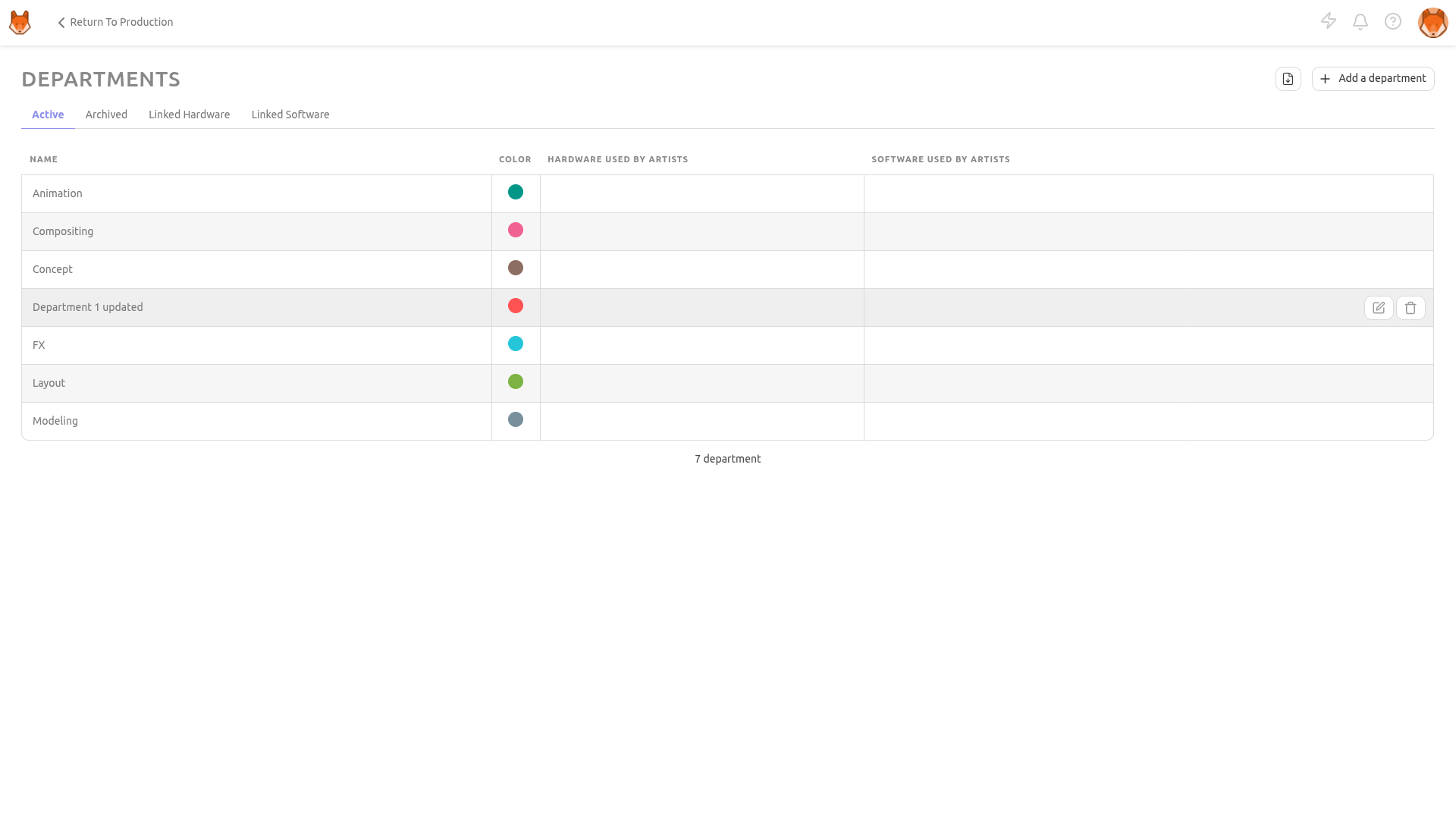
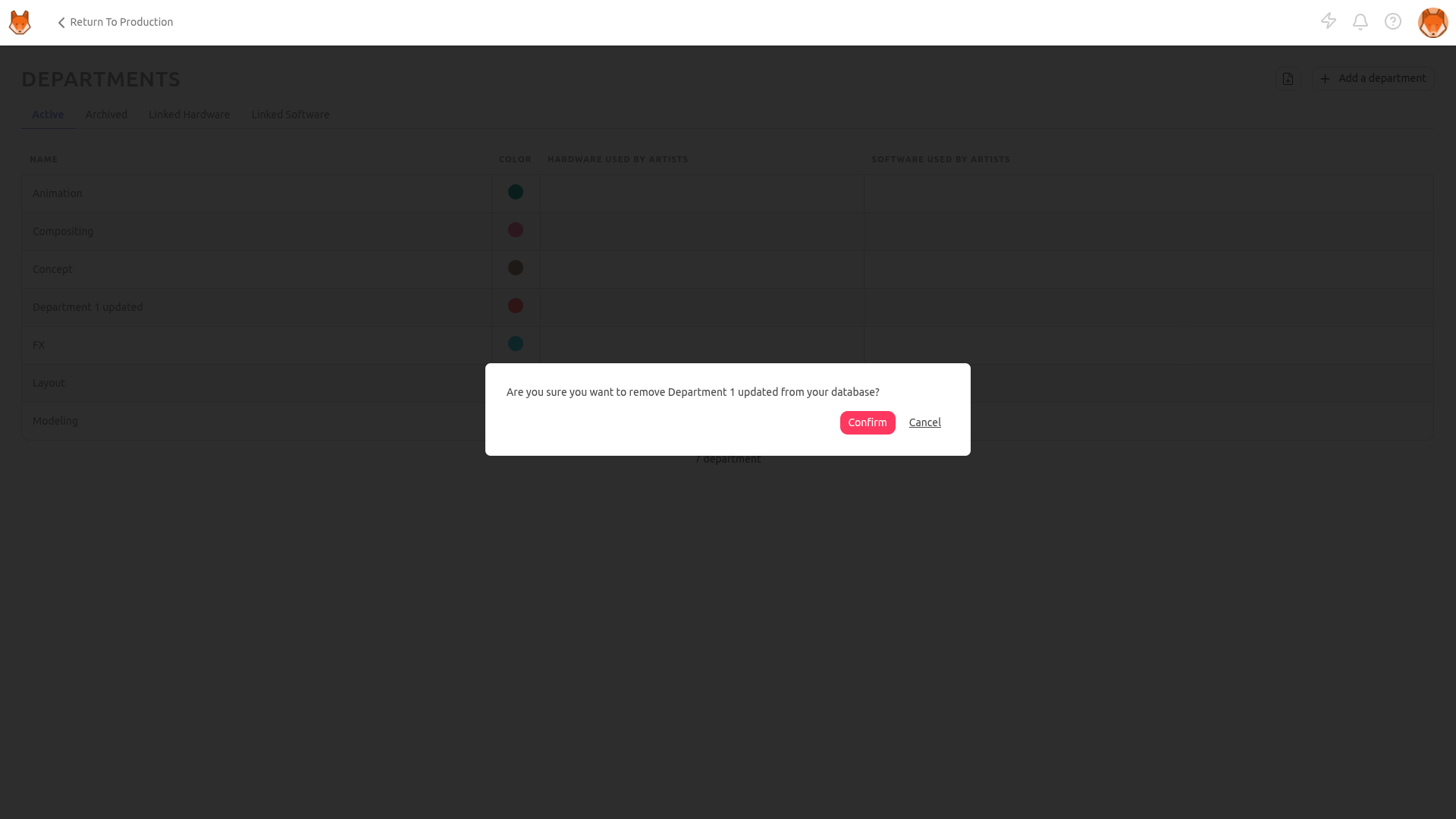
To remove a department, hover over the department row you wish to select and click the Delete icon.