Status Automation
Create a New Status Automation
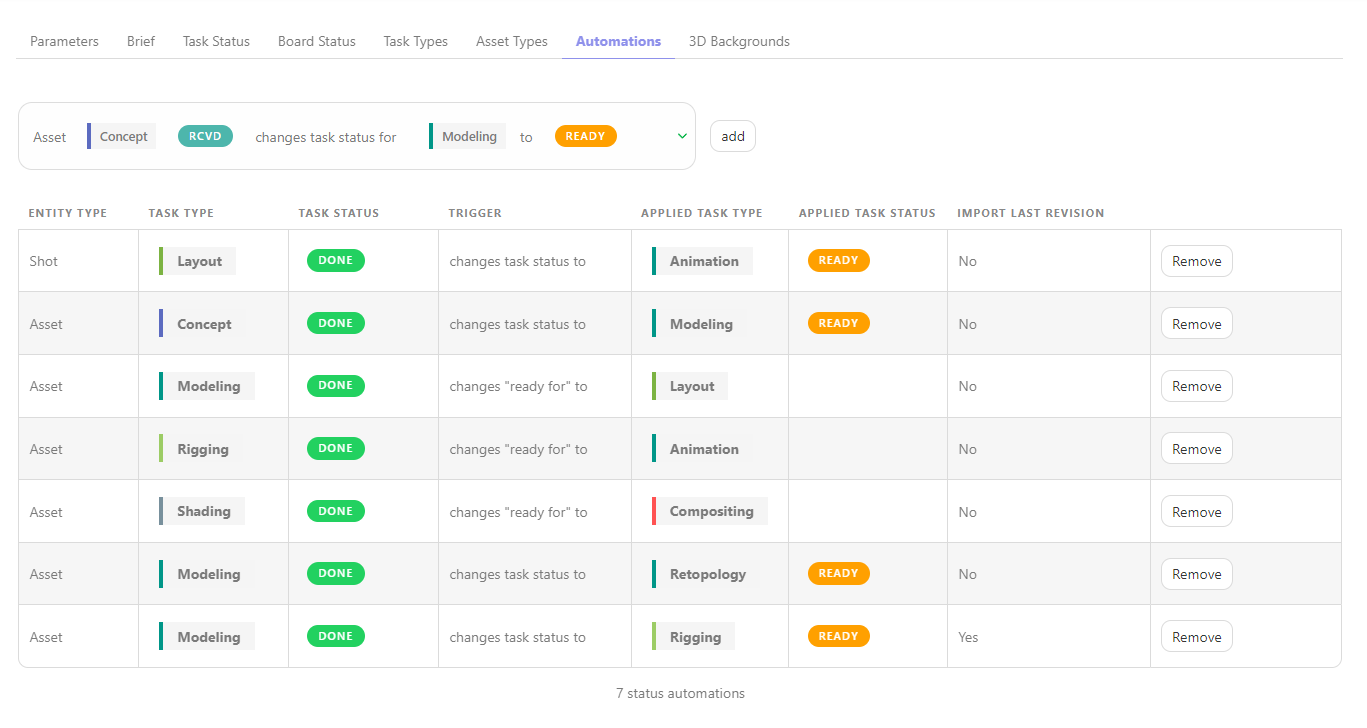
A Status Automation defines rules or conditions that automatically trigger changes in the status of tasks based on predefined criteria. You can set up Status Automation for both asset and shot tasks.
For assets, you can establish Status Automations between tasks. For example, when the concept task status is set to done, the downstream modelling task status is automatically changed to ready.
Additionally, you can create Status Automations that update the Asset Status based on task statuses. For example, when the concept task is set to done , then the linked asset status is set to layout.
TIP
You can also ask Kitsu to copy the latest preview with the Automation.
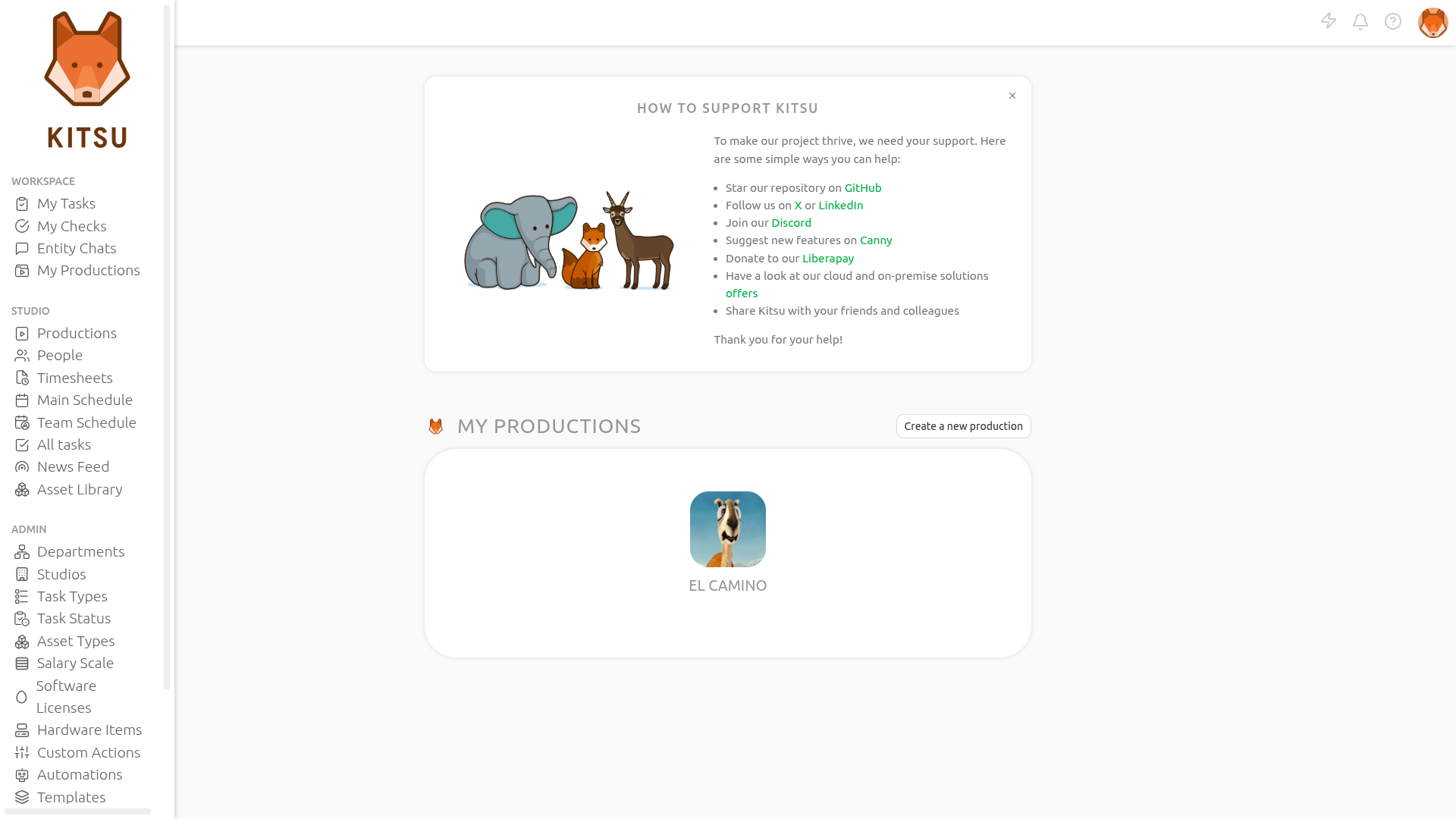
Go to the main menu and select Automations:
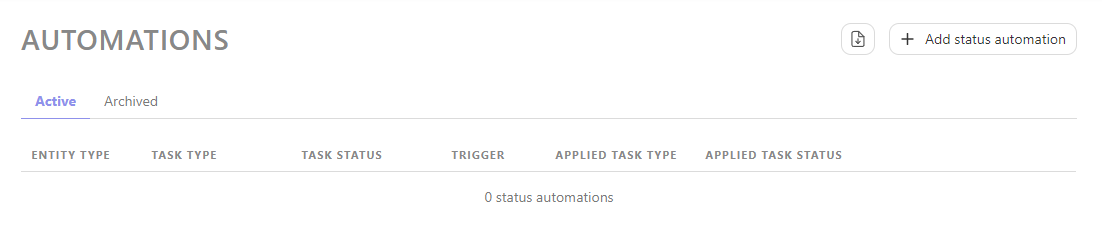
From this page, you can create Status Automations by clicking the + Add status automation button:
You have the option to create Status Automation for either the asset or the shot.
Next, you can select the task type and the status that will trigger the Automation.
You can specify which Task Type will respond to the Automation and select the Status that will be changed.
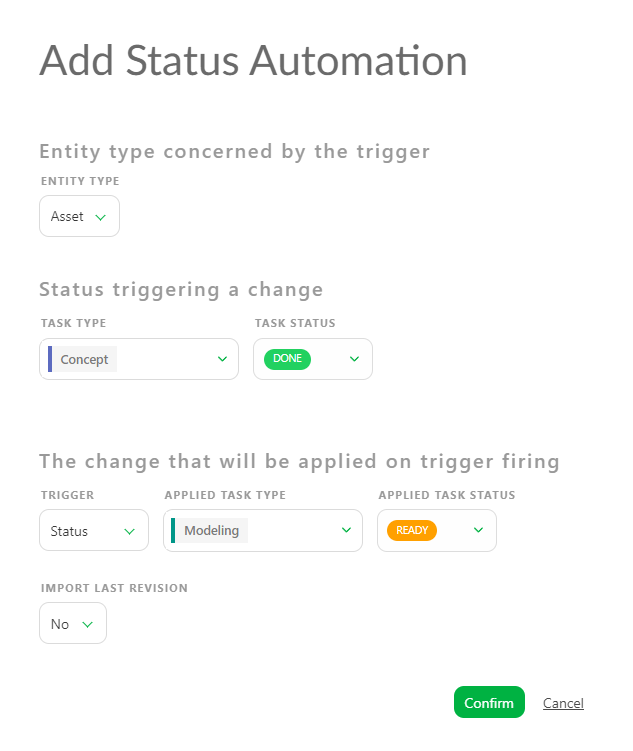
You need to change the trigger from "Status" to Ready For in order to initiate the change in Ready For status.
You will notice the Applied Task Type will now display Shot task type.
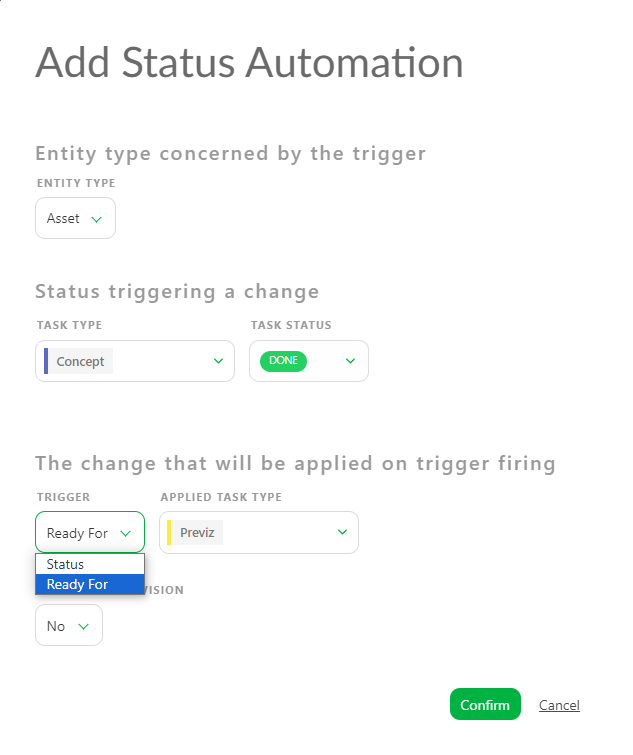
To create a Status Automation for shots, you must change the Entity Type to shots.
Your new Status Automation is now created in your Global Library.
WARNING
You must add status automations to your Production Library once you have created your production.
TIP
At any point during the production, you can return here and create more Status Automations if needed, and then add them to your production.
Add a Status Automation to a Production
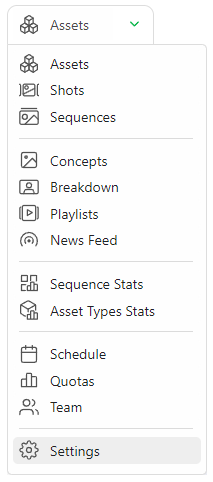
On the Navigation Menu, choose on the dropdown menu the Setting.
Per default, Kitsu will load no status automation of your status automation Global Library into your Production Library.
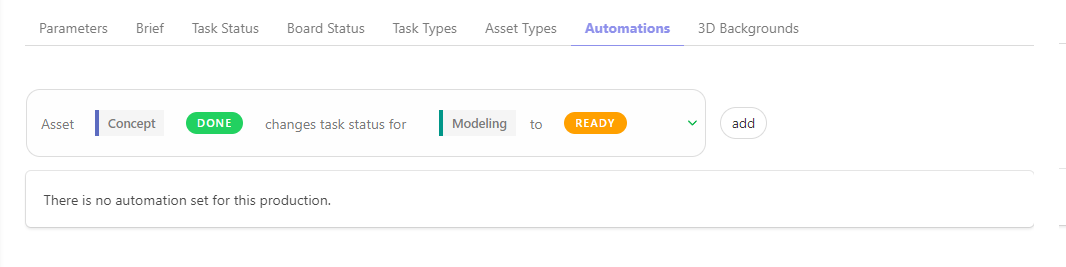
But you can use only specific Status Automation, depending on your production type.
On the Status Automation tab, you can choose which automation you want to use on this production, validate your choice with the add button.