
Managing Episodes
TV Show productions have access to Episode containers to organize sequences and shots.
Episodes Overview
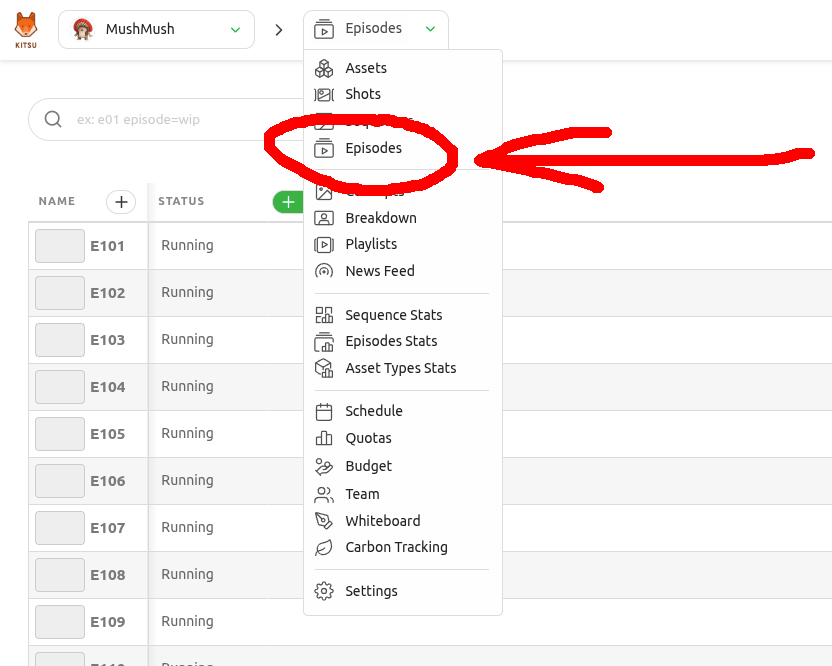
In your production menu, click Episodes:
You'll then reach the Episodes page with a full list of episodes for the current production:
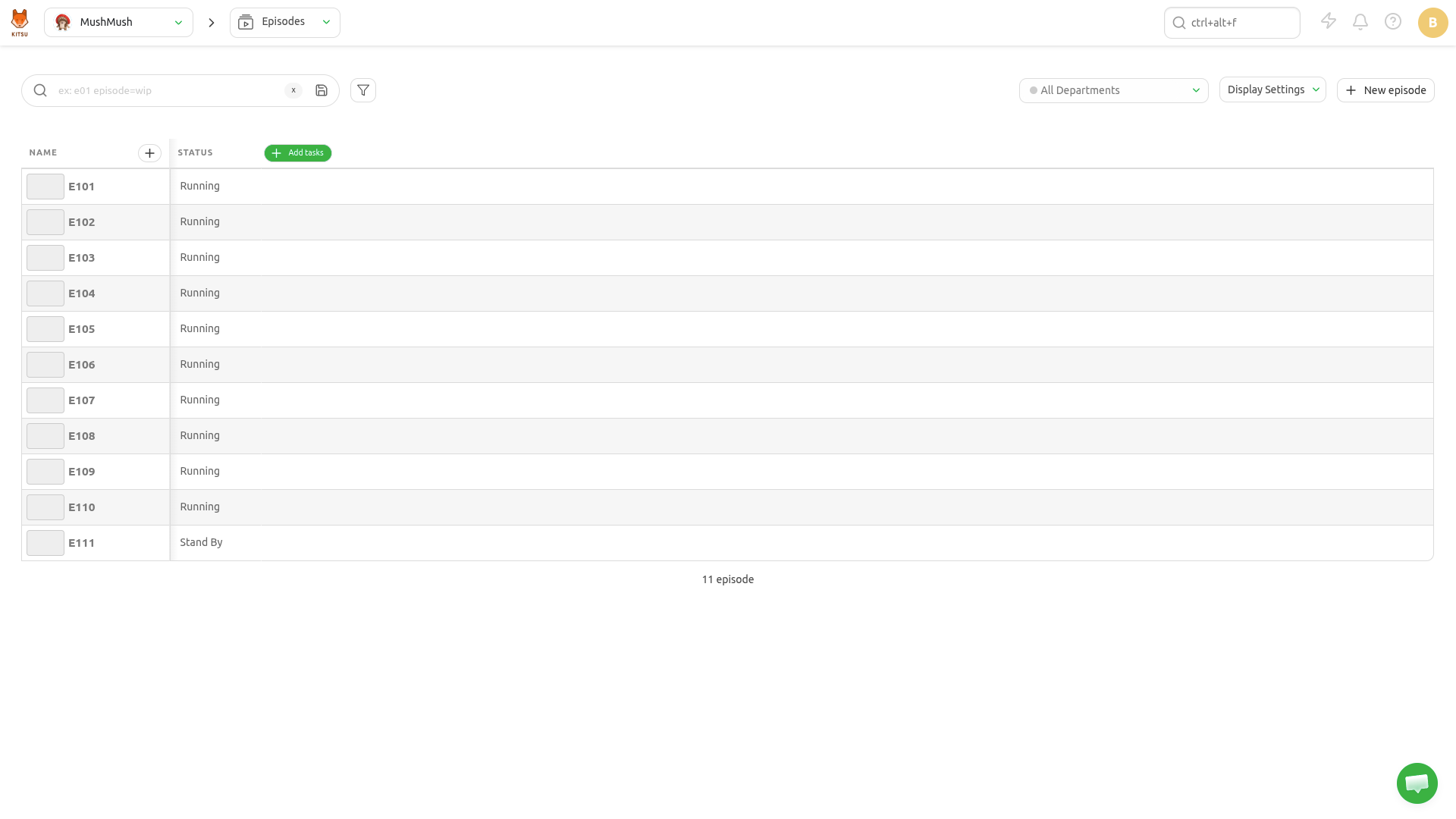
If you click on an episode name, you'll reach the detail page.
Create Episodes
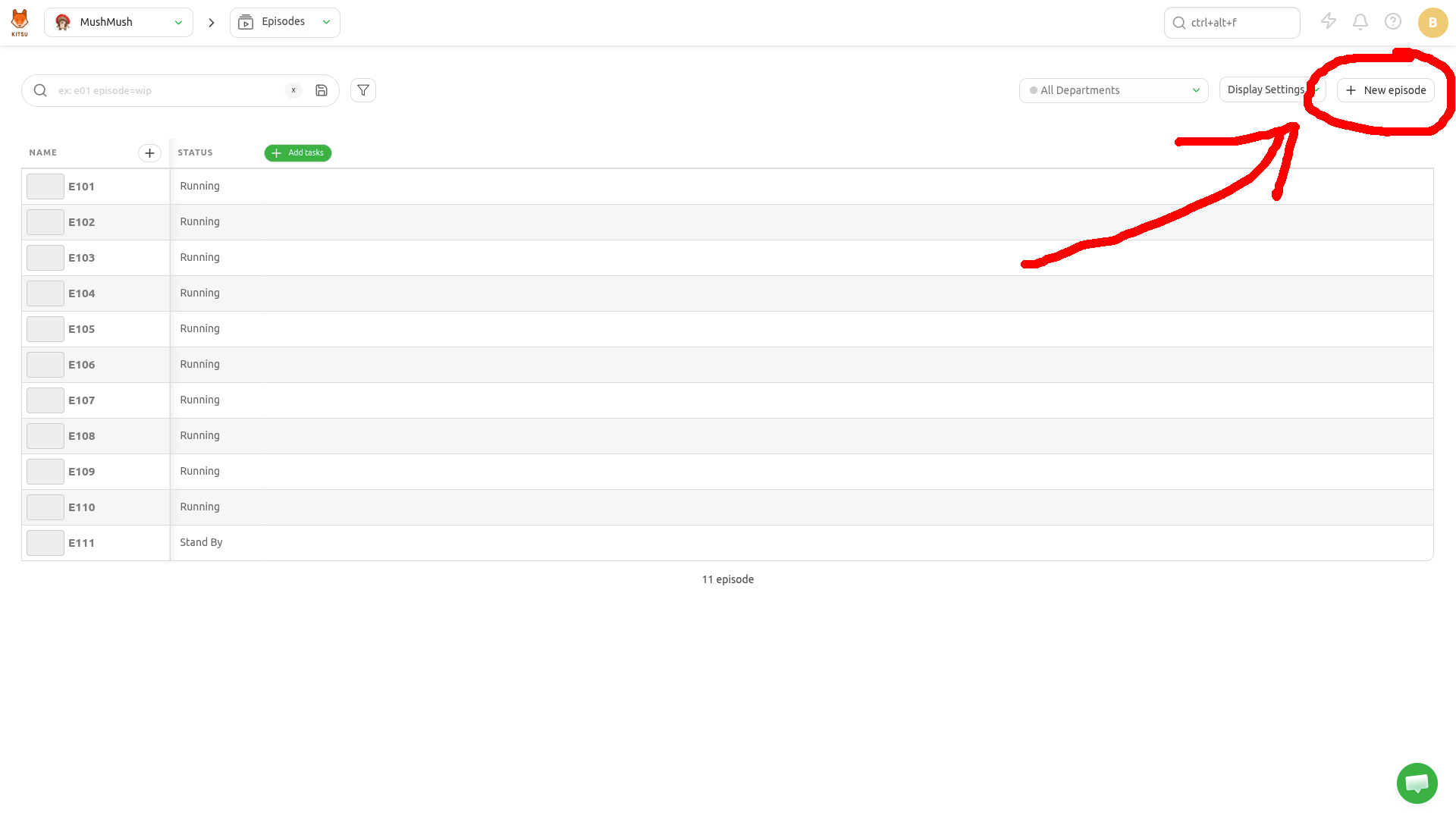
In the Episodes page, click New episode in the top right corner:
A modal appears. Fill the form and click Confirm:
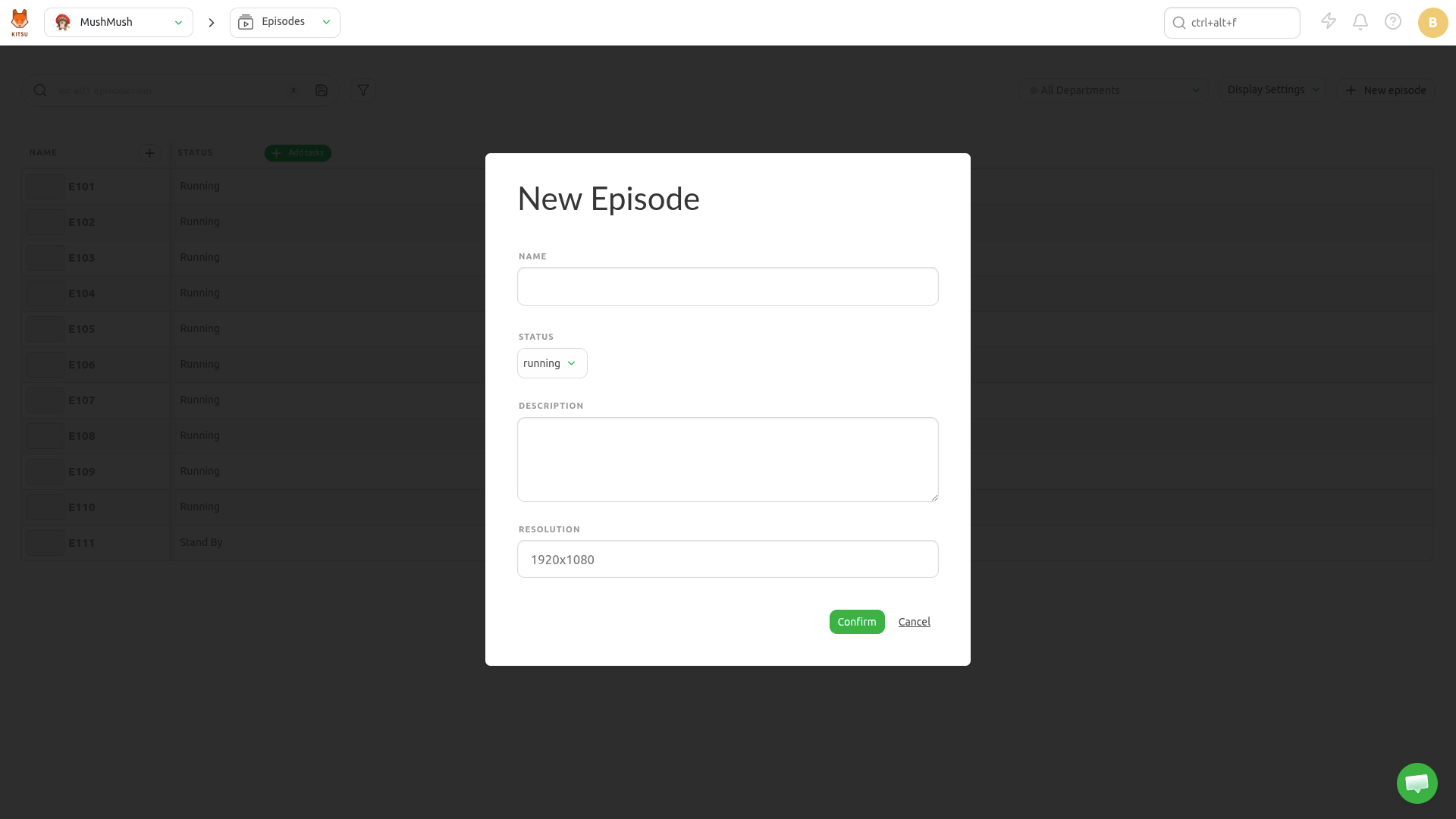
- Name: the episode name
- Status: the production status of the episode (canceled, complete, running, standby)
- Description: a short description of what the episode is about
- Resolution: the episode resolution e.g "1920x1080", "4K", etc.
INFO
You can also create episodes from the global shot page.
Update Episodes
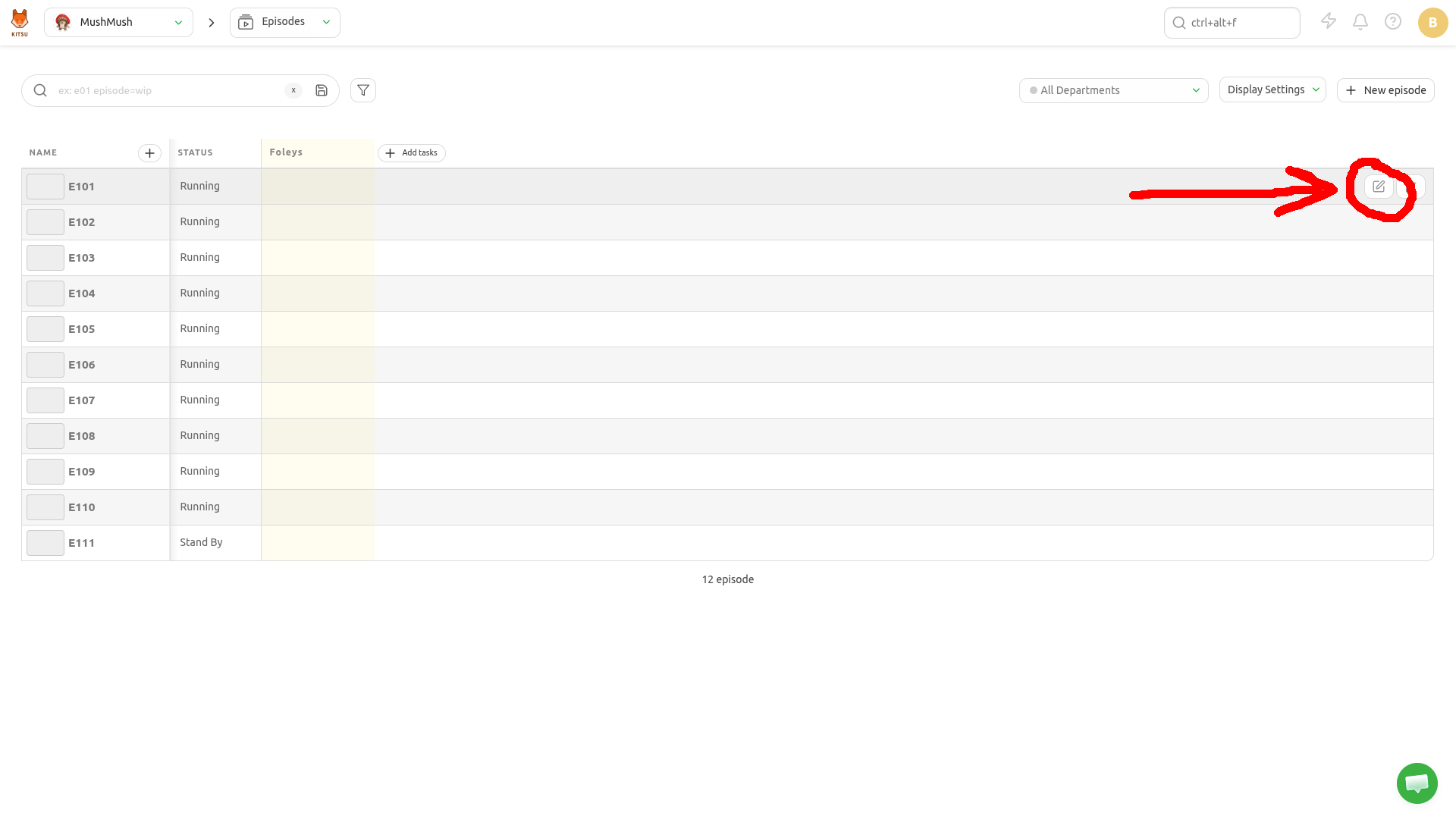
Hover over the episode row you wish to edit in the list and click the Edit icon:
Episode Task Types
Episodes can have their own tasks, which is useful for work that covers a whole episode rather than a single sequence or shot: editing, conform, animatic, sound mix, delivery, etc.
For a task type to be available on episodes, it must be created with Episode as its entity type.
In the main menu, go to Task Types, then click Add task type:
- Name: the task type name e.g "Edit", "Conform", "Delivery"
- For entity type: select
Episode - Color: the color used for the task type in the interface
- Priority: the position of the task type column in the lists
Once the task type exists, add it to your production: go to the production settings and select it in the task types list.
The Episodes page then displays one column per episode task type, with the status of each task.
Click a task cell to open the task panel, where you can change the status, assign artists, publish previews, and add comments, exactly like a shot or asset task.
INFO
Episode task types are only available in TV Show productions, since other production types have no episode container.
Delete Episodes
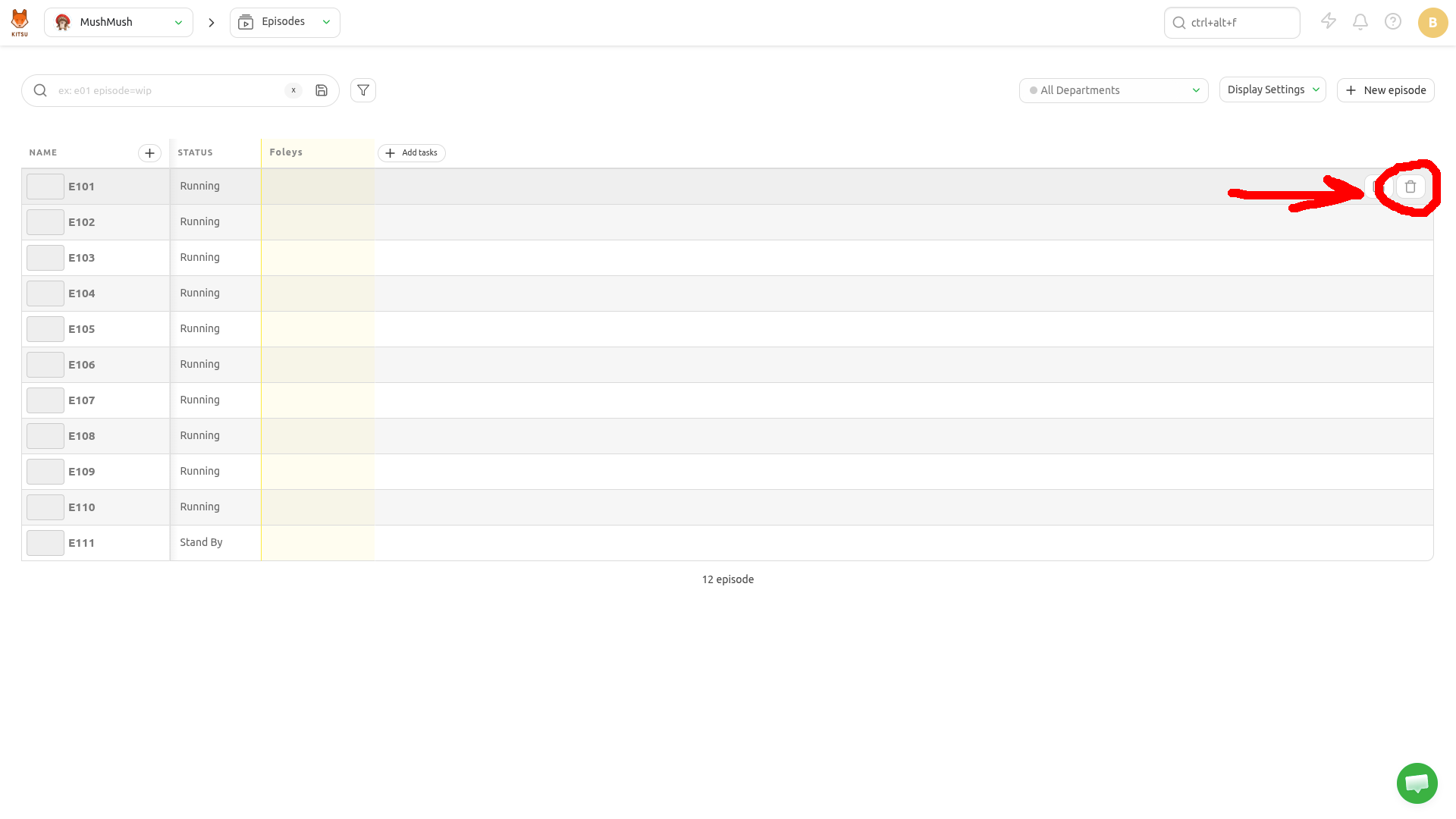
Hover over the episode row you wish to remove in the list and click the Delete icon:
WARNING
Deleting an episode will remove the corresponding sequences, shots, and tasks. You cannot retrieve them back.